If you have multiple PDF files and just want to combine them into one clean document — you're in the right place. A lot of people search for this every single day. And the good news? You don't need to install anything or pay for expensive software.
With pdffixnow.com, you can merge PDF files online for free, right in your browser. Drag and drop your files, arrange them, and download in under a minute. Works on Windows, Mac, Android, and iPhone.
What Does "Merge PDF" Actually Mean?
When you merge PDF documents, you're taking two or more separate PDF files and joining them into one single file. The pages stay in order, nothing gets lost, and the final file looks exactly like you put everything together manually — except the tool does it for you in seconds.
People also call this "combine PDF files", "join PDF files", or "join multiple PDFs" — same thing, just different words.
How to Merge PDF Files Online Using pdffixnow.com
This is the easiest way to combine PDF files — no software, no sign-up, no watermark. Just open the browser and you're ready to go.
Here's exactly how it works:
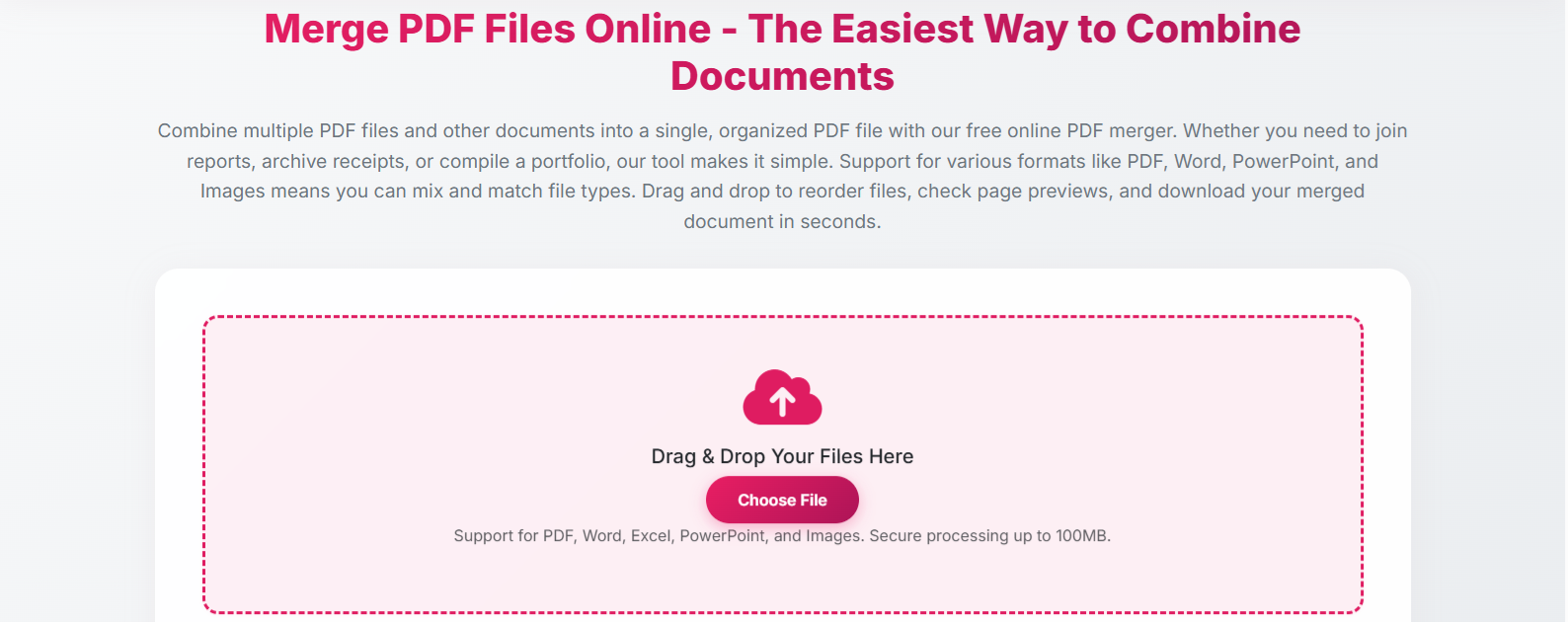
Step 1 — Upload Your Files (Drag & Drop or Click)
Go to the Merge PDF tool on pdffixnow.com. You have two ways to add files:
- Drag and drop your PDF files directly onto the page — just grab them from your desktop or folder and drop them in
- Click the upload button and select files from your device
You can add multiple PDF files at once. No need to go one by one.
Step 2 — Import from Google Drive or Dropbox
Already have your files saved in the cloud? No need to download them first. pdffixnow.com lets you import PDF files directly from Google Drive or Dropbox with one click.
Just click the Google Drive or Dropbox button in the upload area, pick your files, and they'll load straight into the tool.
Step 3 — Arrange, Rotate, and Manage Pages
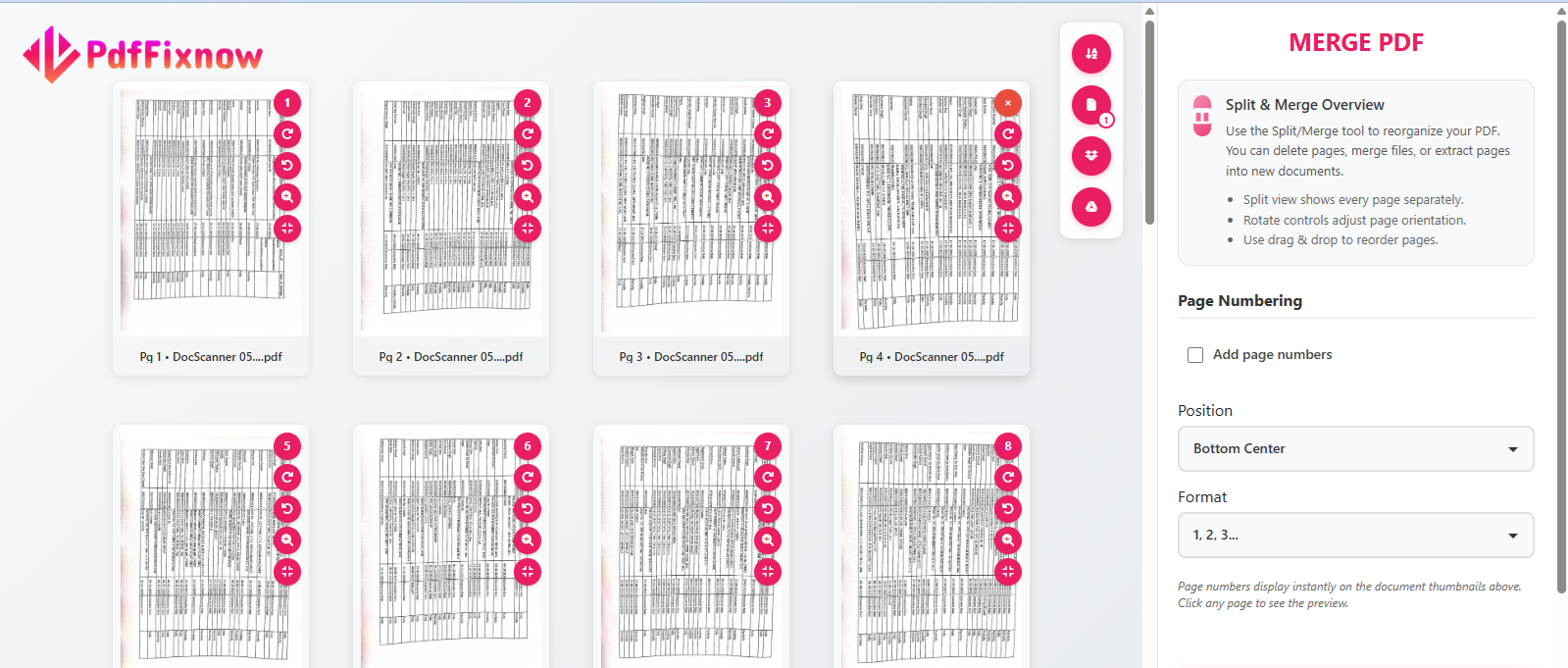
Once your files are uploaded, you'll see all the pages laid out in front of you. This is where the tool gives you full control before merging:
- Reorder files — drag and drop to arrange them in the exact order you want
- Rotate pages — if any page is upside down or sideways, rotate it right there
- Add page numbers — turn on page numbering so your final merged document is easy to navigate
- Remove pages — don't need a specific page? Delete it before you merge
Step 4 — Add More Files If Needed
Changed your mind and want to include another document? No problem. Click "Add More Files" at any point and pick the next one. You can keep adding files until everything is exactly how you want it.
Step 5 — Merge, Then Download or Share
Once everything looks good, click "Merge PDF". The tool combines all your files into one clean document. Then you have three options for what to do next:
- Download the merged PDF directly to your device
- Save to Google Drive or Dropbox with one click — no manual re-uploading needed
- Share via link — get a shareable download link you can send to anyone instantly
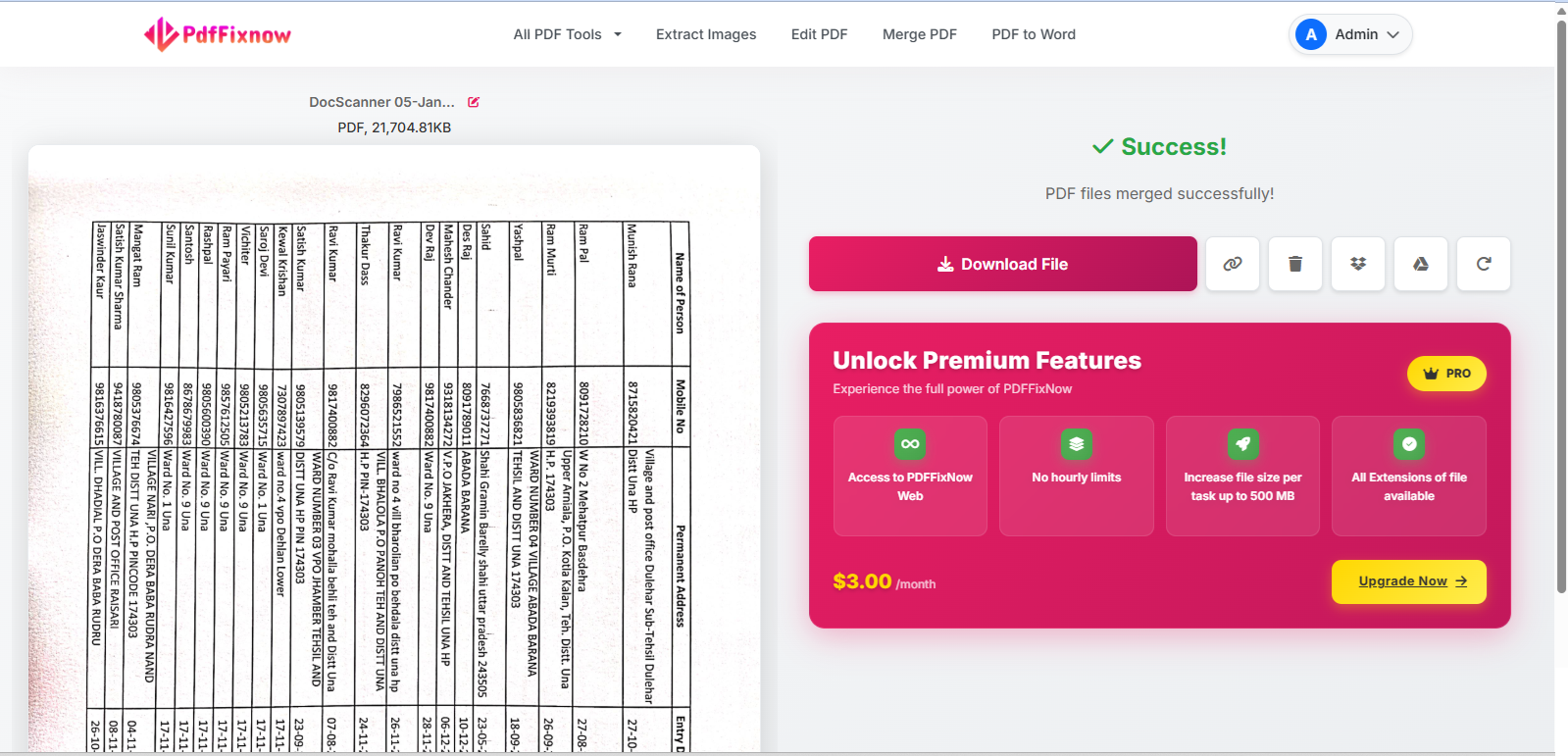
The whole process takes about 30–60 seconds. Your files are deleted from the server automatically after processing.
Merging Multiple Files at Once — Batch Download
If you're working with a large batch of files and need to keep them as separate merged sets, pdffixnow.com also supports batch download as a ZIP file. Instead of downloading each merged file one by one, you get everything packed into a single ZIP that saves to your device in one go.
This is especially useful for people handling multiple documents at once — like combining invoices, contracts, or reports in bulk.
What File Formats Can You Merge?
Free users can merge PDF files with other PDF files. This covers the vast majority of everyday use cases.
Paid users get access to merging any format — Word documents, JPG images, PNG files, and more — all combined into one single PDF. So if you have a mix of file types and want them all in one document, upgrading unlocks that instantly.
Features Inside the pdffixnow.com Merge Tool
Here's everything the Merge PDF tool lets you do:
| Feature | Free | Paid |
|---|---|---|
| Drag & drop file upload | ✅ | ✅ |
| Upload multiple PDF files at once | ✅ | ✅ |
| Import from Google Drive / Dropbox | ✅ | ✅ |
| Reorder pages and files | ✅ | ✅ |
| Rotate individual pages | ✅ | ✅ |
| Add page numbers | ✅ | ✅ |
| Remove unwanted pages | ✅ | ✅ |
| Download merged PDF | ✅ | ✅ |
| Save to Google Drive / Dropbox | ✅ | ✅ |
| Share via link | ✅ | ✅ |
| Batch download as ZIP | ✅ | ✅ |
| No watermark on output | ✅ | ✅ |
| Merge PDF + other formats (Word, JPG, PNG, etc.) | ❌ | ✅ |
How to Merge PDF Files on Windows
On Windows 10 or Windows 11, just open your browser and go to the Merge PDF tool. No download, no installation needed.
Drag your files directly onto the page or click upload. Works in Chrome, Edge, Firefox — any browser you already have. Once merged, save directly to your desktop or push it to Google Drive without leaving the page.
How to Merge PDF Files on Mac
On Mac, open Safari, Chrome, or Firefox and head to the Merge PDF tool. Drag and drop your files right onto the page — it works perfectly in any Mac browser.
You get all the same features: rotate pages, remove pages, add page numbers, import from Drive — all before you merge. Fast and simple.
How to Merge PDF Files on Android
Open Chrome on your Android phone and go to pdffixnow.com/merge-pdf. Upload your PDFs from your phone's storage, manage the pages, and when you're done — download to your device or save straight to Google Drive.
How to Merge PDF Files on iPhone
On iPhone, open Safari and go to pdffixnow.com/merge-pdf. Works the same as Android. Upload, arrange, merge, and save to your phone or Dropbox. No app install needed.
How to Merge PDF Files Without Losing Quality
When you use pdffixnow.com to merge PDF documents, there is zero quality loss. The tool doesn't compress or convert your files — it simply joins the pages together exactly as they are.
Images, fonts, layouts — everything stays identical in the final merged file. Quality only gets affected if you separately choose to compress the PDF, which is a completely different step.
Merge PDF Without Watermark
pdffixnow.com does not add any watermark to your merged file — free or paid. What you upload is exactly what you get back, just combined into one clean document and ready to download or share.
Merge Scanned PDF Files
Scanned PDFs are image-based files and yes — they merge the same way as regular PDFs. Upload your scanned files to the Merge PDF tool, arrange the pages, and merge. All your scanned pages will be combined cleanly in the right order.
If you need the text in your scanned document to be searchable after merging, check out our PDF OCR tool — but the merging itself works perfectly with scanned files as-is.
Merge Password Protected PDF Files
If your PDF has a password, you'll need to unlock it before merging. Use the Unlock PDF tool on pdffixnow.com to remove the password first. Once unlocked, upload it to the merge tool and combine it like any normal PDF.
How to Merge PDF Files Saved in Google Drive
You don't need to download files from Google Drive before merging them anymore. pdffixnow.com lets you import PDFs directly from Google Drive, merge them, and then save the result back to Google Drive — all without leaving the tool.
Go to the Merge PDF tool, click the Google Drive import button, select your files, merge, and hit "Save to Google Drive". Done in two minutes, formatting stays perfect.
How to Share a Merged PDF Without Downloading
Once you've merged your files, pdffixnow.com generates a shareable link for the merged PDF. Just copy the link and send it to whoever needs the file — no email attachment, no file size limits, no downloading required on either end.
This is handy when you need to send a large merged document to a client or colleague quickly.
PDF Merger vs Combine PDF — Any Difference?
No difference at all. "Merge PDF", "combine PDF", "join PDF files", "PDF combiner", "PDF file merger" — these all mean exactly the same thing. You end up with multiple files joined into one document regardless of what you call it.
Why Do People Merge PDF Files?
Here are the most common real-life reasons people need to combine PDF documents:
- Resume and cover letter need to go as one single attachment
- A document was scanned page by page and needs to be joined
- Multiple report chapters arrived separately and need to be one file
- Invoices from different months need to be combined for records
- Contract appendices need to be attached to the main document
In all these cases, a free online PDF merger gets it done without any manual copy-pasting or software downloads.
FAQ
Q: How many PDF files can I merge at once on pdffixnow.com? You can add multiple files at once via drag and drop or the upload button. Click "Add More Files" to keep adding more before you merge.
Q: Is it safe to upload my PDFs to pdffixnow.com? Yes. Files are processed securely and deleted from the server automatically after a short time. Your documents are never stored or shared.
Q: Can I save the merged PDF directly to Google Drive or Dropbox? Yes — after merging, just click "Save to Google Drive" or "Save to Dropbox" and the file goes straight to your cloud storage. No need to download and re-upload manually.
Q: Can I get a shareable link for the merged PDF? Yes. After merging, pdffixnow.com gives you a shareable download link. Copy it and send it to anyone — they can download the file directly without needing an account.
Q: Can I remove a page I don't want before merging? Yes — click the delete option on any page thumbnail before merging. You can also use the dedicated Delete PDF Pages tool for more control.
Q: Does merging increase the file size? Slightly, because you're combining the content of multiple files. If the final file is too large to email, run it through our PDF Compressor afterward.
Q: Can I download multiple merged files as a ZIP? Yes — pdffixnow.com supports batch download as a ZIP file so you can get multiple merged documents in one go.
Q: What if I need to merge a Word file or image with a PDF? Free users can merge PDF with PDF. To merge Word, JPG, PNG, or other formats with a PDF, that's available with a paid account on pdffixnow.com.
Q: What if I need to split a merged PDF back into separate files? Use our Split PDF tool to separate a PDF into individual pages or sections.
Wrapping Up
Merging PDF files doesn't have to be complicated. Whether you're on Windows, Mac, Android, or iPhone — the Merge PDF tool on pdffixnow.com lets you combine multiple PDF files for free, in under a minute.
Drag and drop your files, import from Google Drive or Dropbox, arrange pages, rotate, remove, add page numbers — then download, save to cloud, or share via link. Everything in one place.
No watermark. No software. No sign-up needed for free use.
Related Tools on pdffixnow.com
- 🔗 Split PDF — Break one PDF into multiple separate files
- 🔗 Compress PDF — Reduce PDF file size without losing quality
- 🔗 Unlock PDF — Remove password from a PDF before merging
- 🔗 Delete PDF Pages — Remove specific pages from any PDF
- 🔗 PDF OCR — Make scanned PDFs searchable and editable
- 🔗 Convert PDF to Word — Turn your PDF into an editable Word document
 Sign in with Google